
Set Up Two-Step Verification (MFA)
Protect your Launch Fast account with Apple Passwords. Follow the setup steps for the iPhone app or the web app.
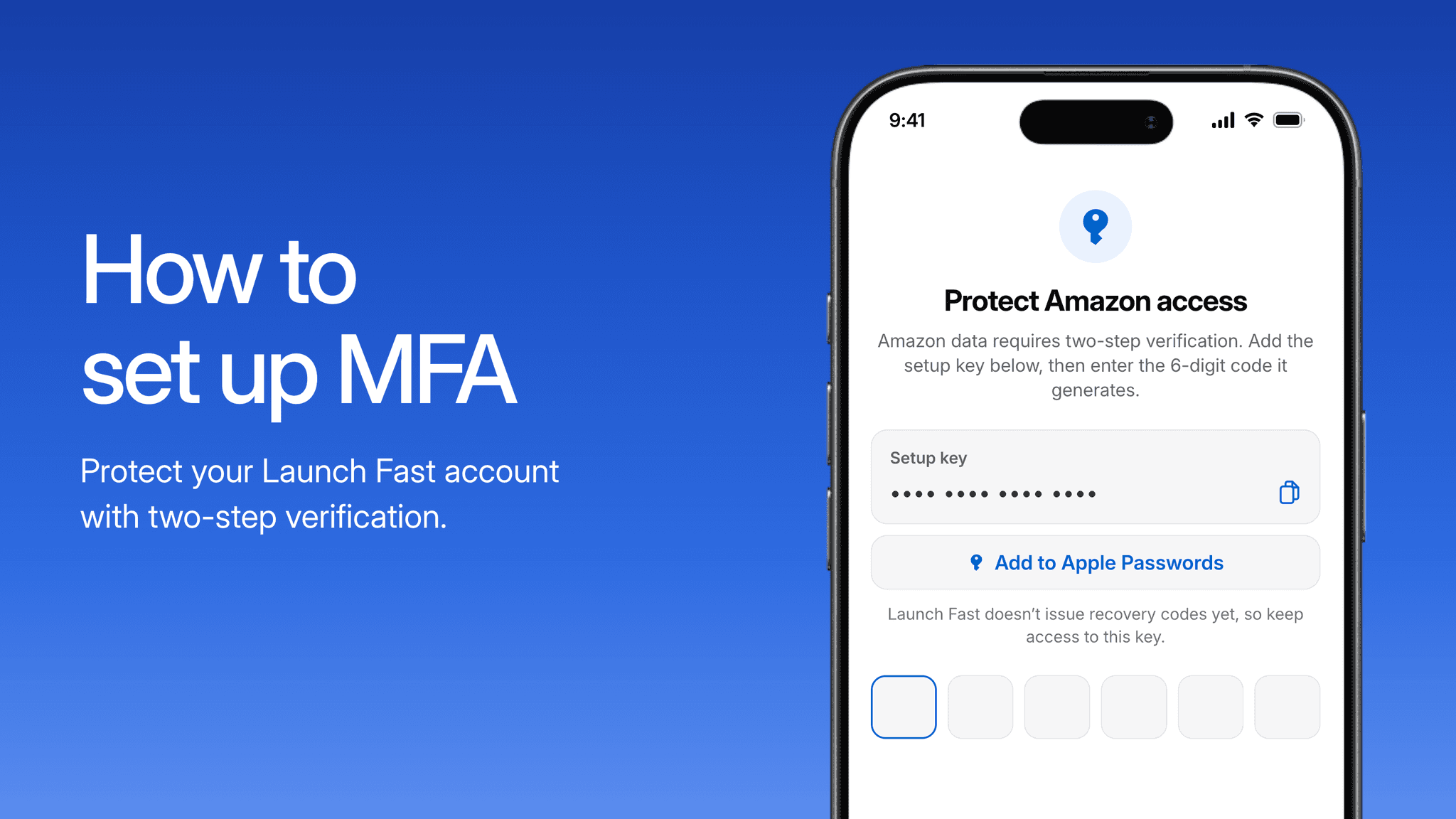
Two-step verification, also called multi-factor authentication (MFA), adds a six-digit code from your authenticator to your Launch Fast sign-in. Launch Fast uses this extra check to protect access to your connected Amazon Seller and Ads data.
You can set it up in the iPhone app or the web app. Use the instructions below for the device you are on.
If you already set up two-step verification for the same Launch Fast account, use the existing Launch Fast entry in your authenticator. You do not need a separate setup for the iPhone and web apps. Each may still ask you to enter a code to verify that session.
Before you start
You need to be signed in to Launch Fast and have an authenticator that generates verification codes. We recommend Apple Passwords if you have an iPhone. The steps below use it for both the iPhone app and web setup. You can also use another authenticator that supports setup keys and QR codes.
There are two different things you will see during setup:
- Setup key or QR code: Add this to your authenticator once to save Launch Fast.
- Six-digit verification code: Your authenticator generates this after you save the setup. Enter this code in Launch Fast to finish. It changes regularly.
This code comes from your authenticator, not an email or text message. Use the entry for Launch Fast, rather than your Amazon sign-in code.
Set up in the iPhone app
1. Open the verification screen
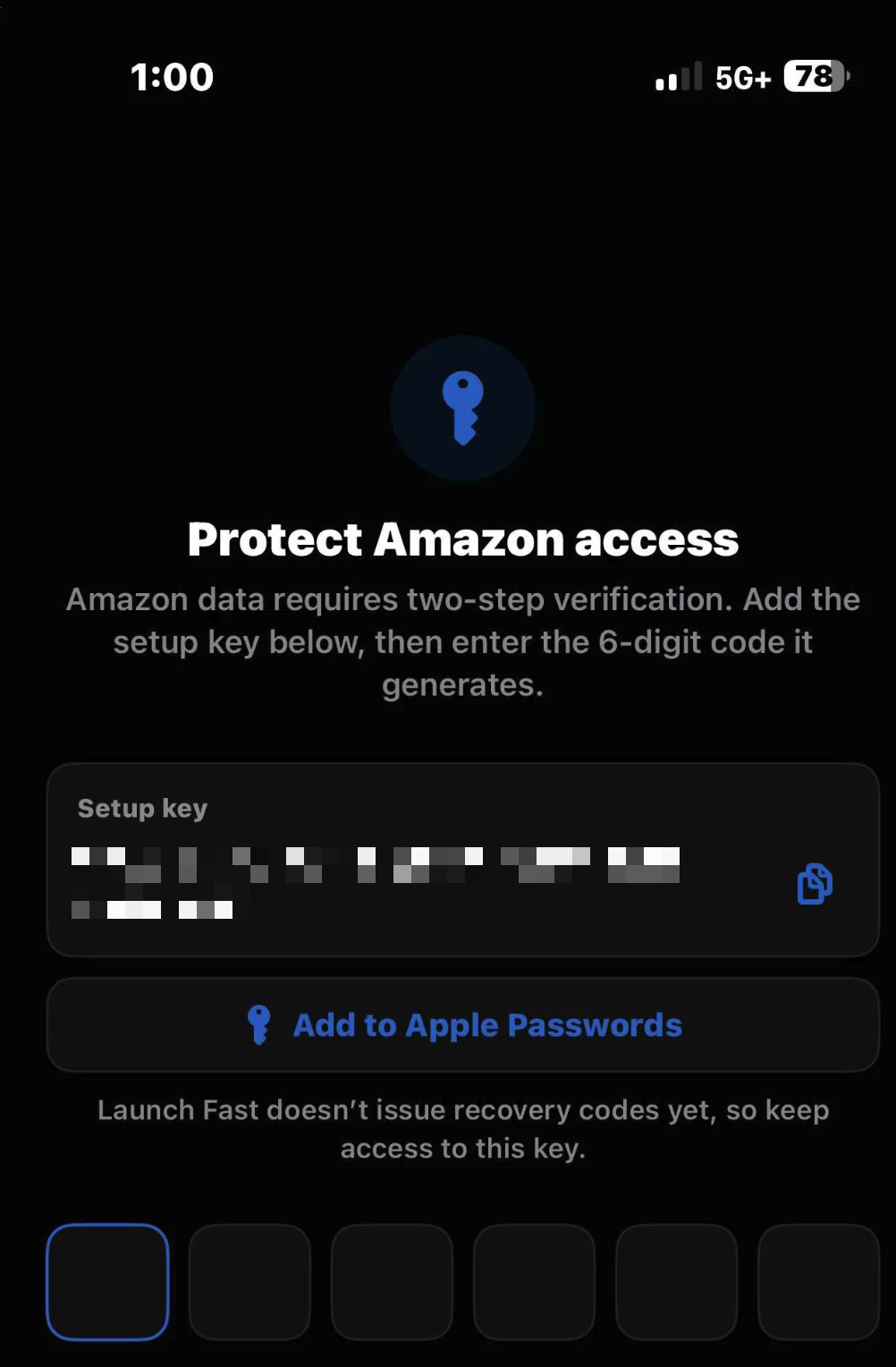
Sign in to the Launch Fast iPhone app. When setup is needed to access Amazon data, you will see Protect Amazon access with a Setup key.
If you see Verify it’s you instead, your authenticator is already set up. Open its Launch Fast entry and enter the current six-digit code.
2. Save Launch Fast in Apple Passwords
Tap Add to Apple Passwords. On Add Verification Code, choose your saved Launch Fast login.
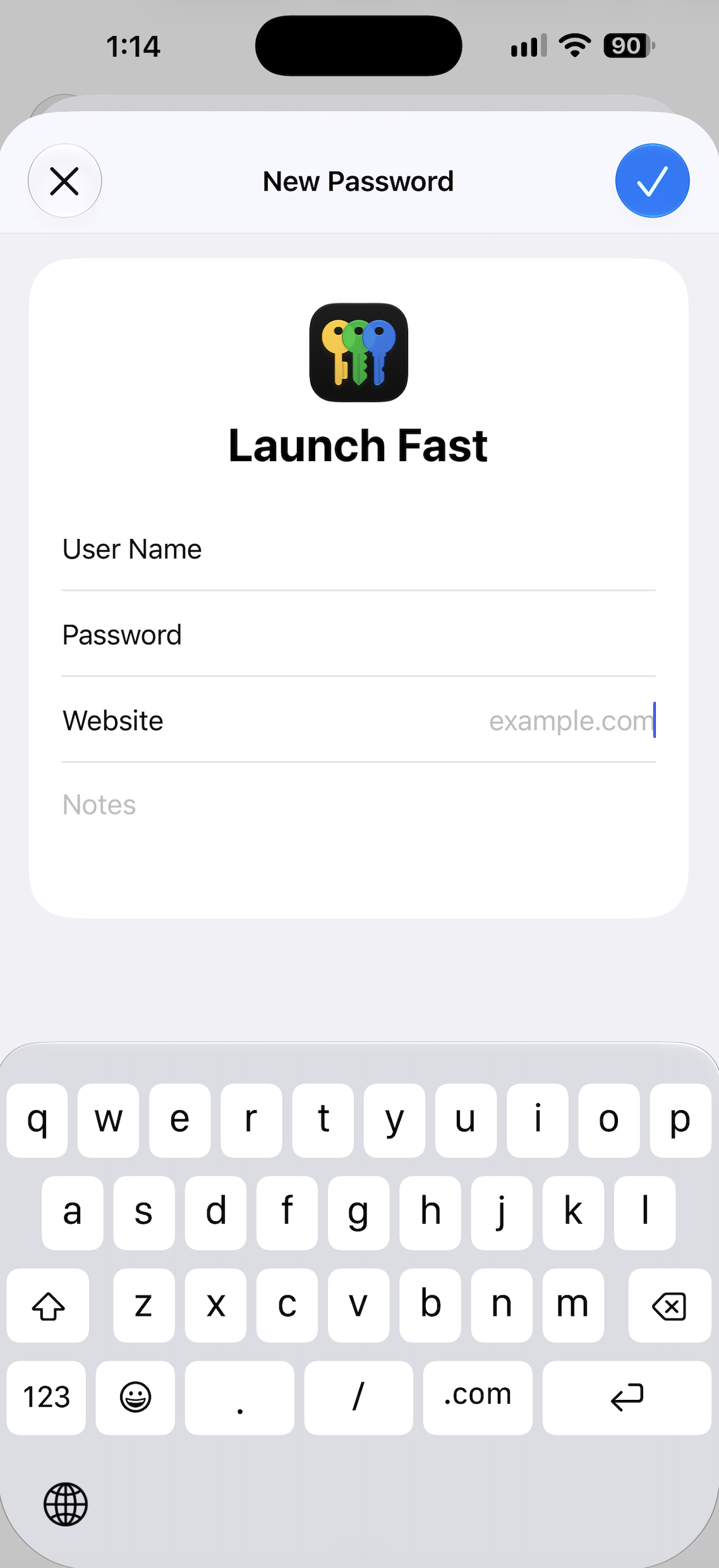
If you have not saved a Launch Fast login in Passwords, tap + to add one. Give it the name Launch Fast, use your Launch Fast email for User Name, and enter launchfastlegacyx.com for Website. If you save a password, use your existing Launch Fast password. Tap the checkmark to save.
The New Password screen adds a saved entry in Apple Passwords; it does not change your Launch Fast account password.
If you prefer another authenticator, tap the copy icon beside Setup key. Open your authenticator, choose its option to add an account using a setup key, and paste the key. Name the entry Launch Fast so you can find it later.
3. Enter the six-digit code
Open the saved Launch Fast entry in Apple Passwords or your authenticator and find its current verification code.
Return to Launch Fast and enter that code in the six boxes. The app checks it automatically when all six digits are entered. You can also tap Verify and continue if needed.
Once verification succeeds, you can continue into the app.
Set up in the web app
1. Open Authentication settings
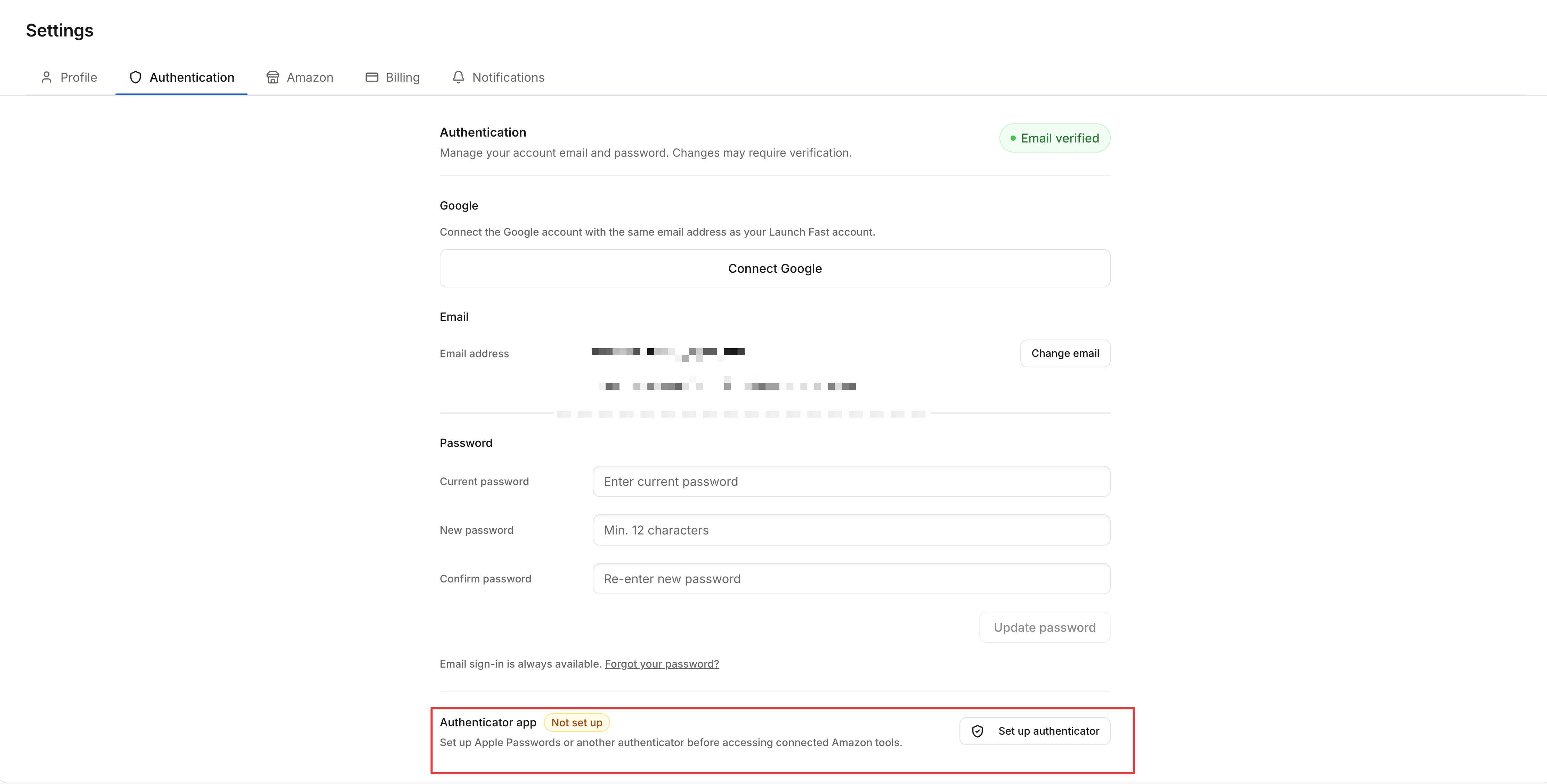
Sign in to the Launch Fast web app. Go to Settings → Authentication, then click Set up authenticator.
You may also be prompted when opening connected Amazon tools. Click Verify and unlock to continue to verification.
2. Open Apple Passwords on your iPhone
Keep the Set up two-step verification page open in Launch Fast. You will add the QR code or setup key to Apple Passwords, then return here to enter the six-digit code it generates.
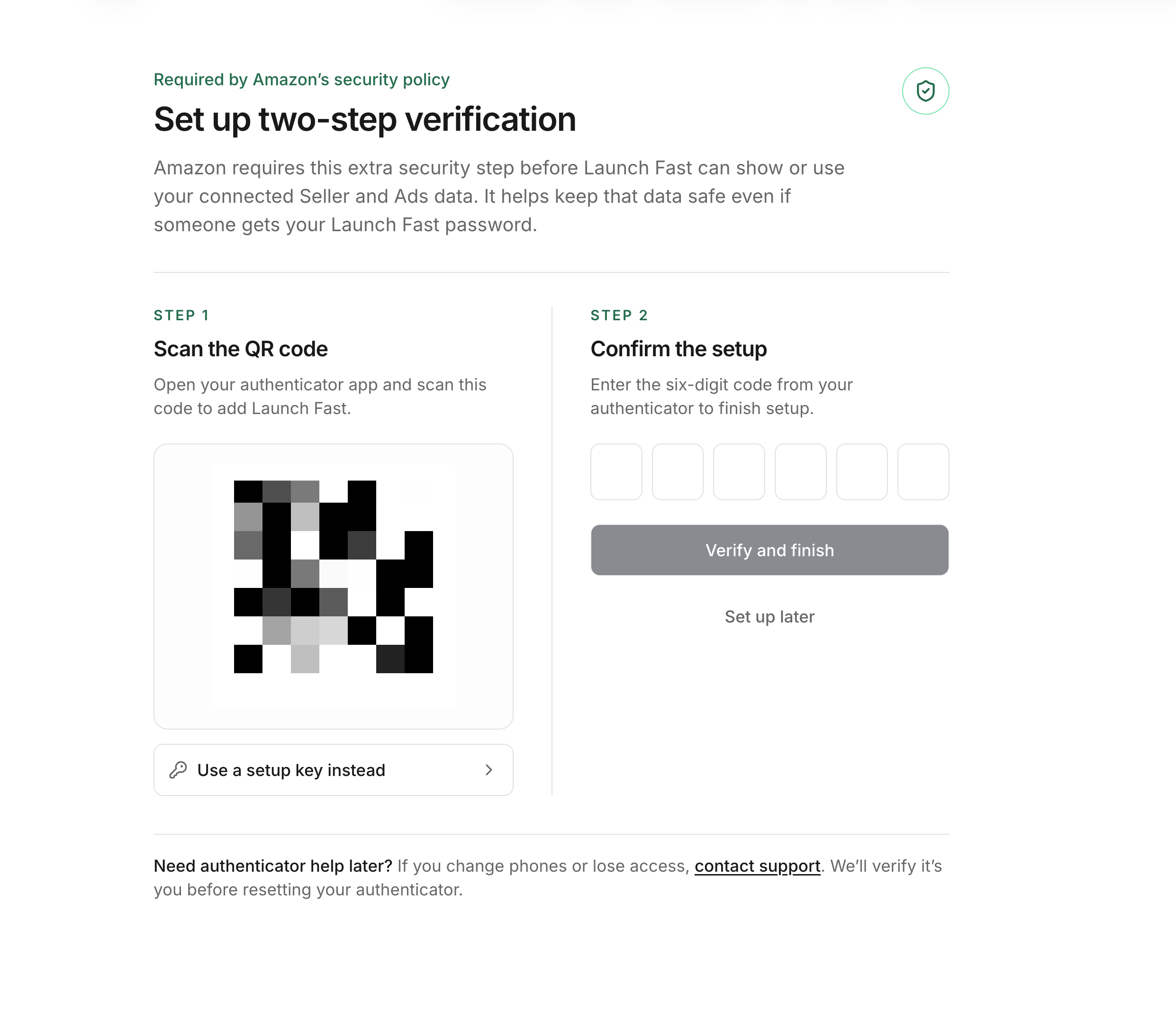
On your iPhone, open Passwords, unlock it, and open Codes. Tap + to open Set Up Verification Code.
- Using a computer for Launch Fast? Tap Scan QR Code with Camera and scan the QR code on your Launch Fast page.
- Using the same iPhone for Launch Fast and Passwords? In Launch Fast, open Use a setup key instead and copy the key. Switch to Passwords, paste it into Setup Key, and tap Use Setup Key.
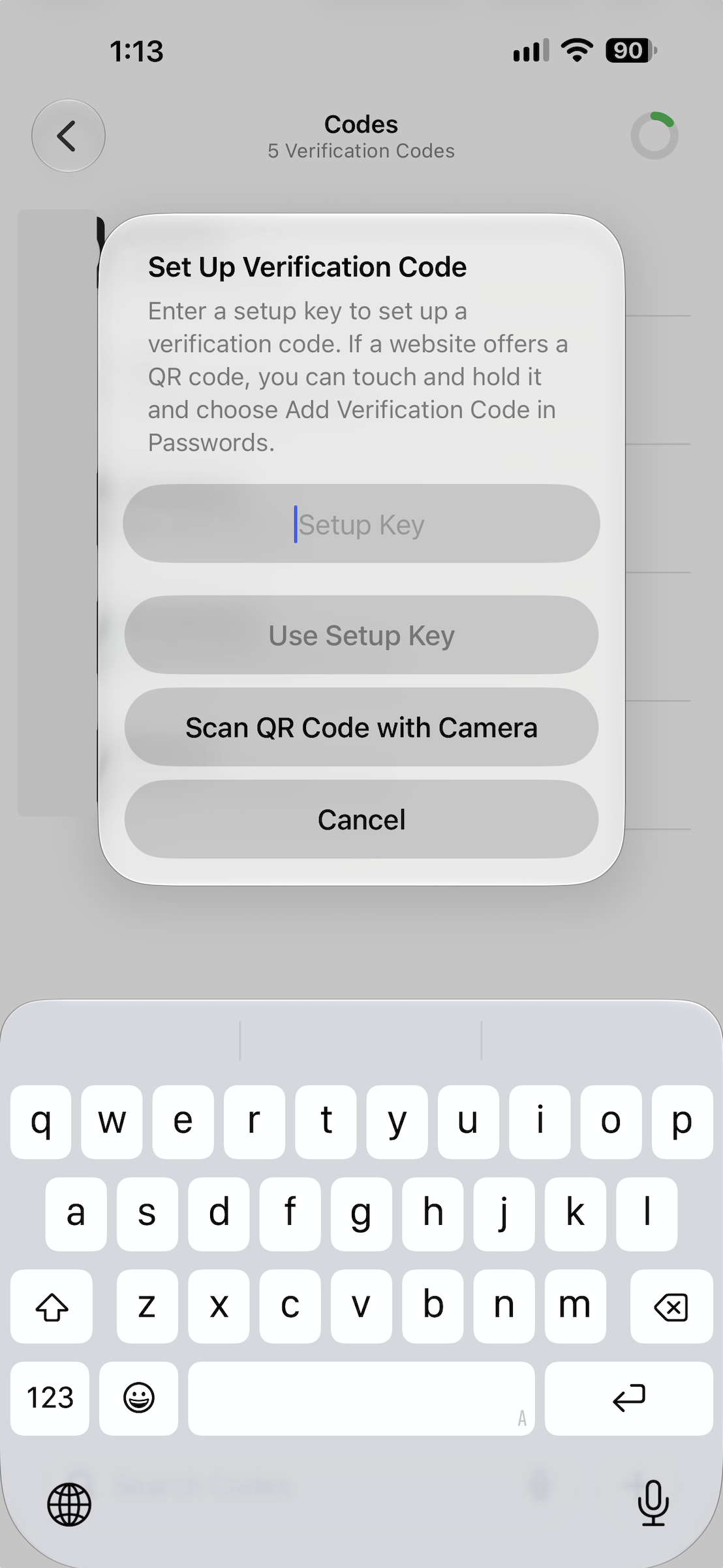
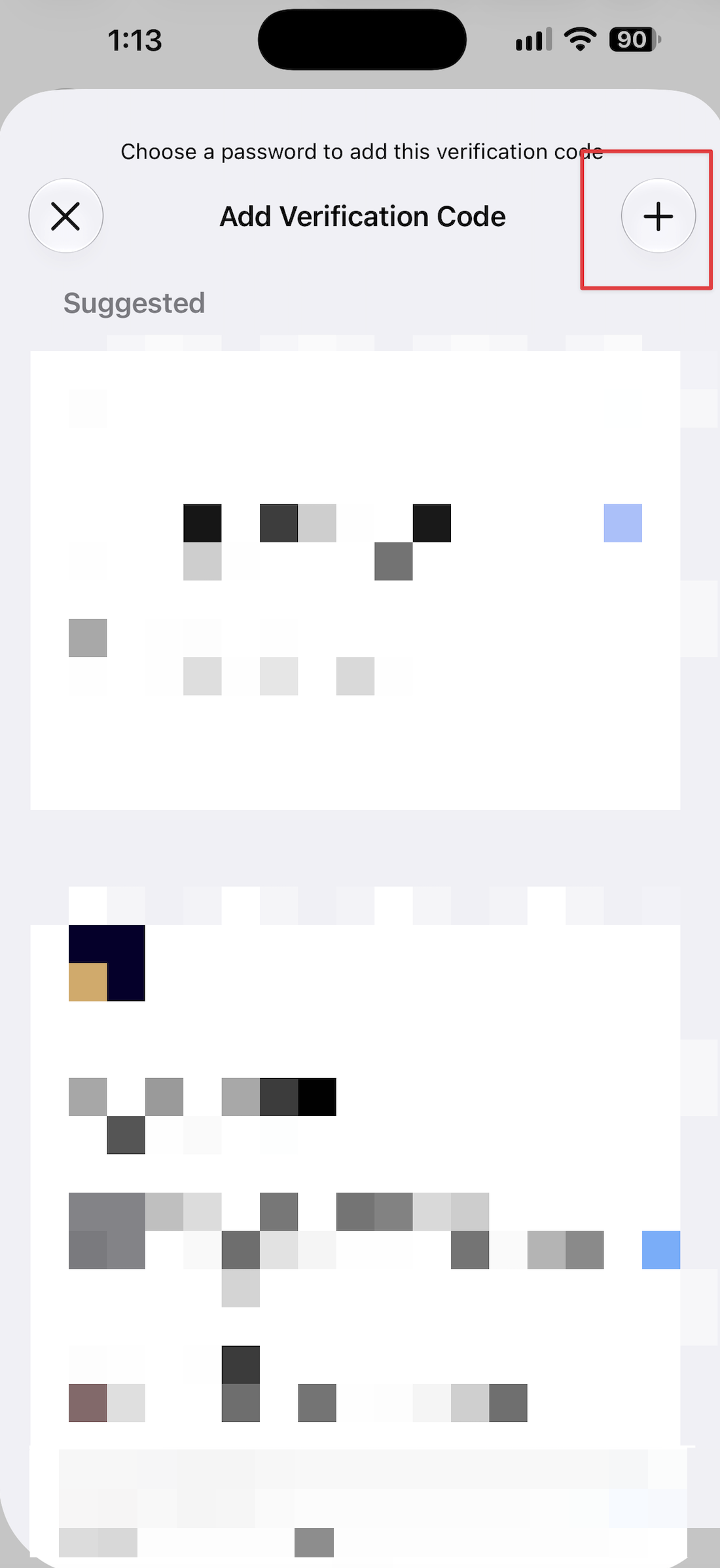
3. Save the code to your Launch Fast login
On Add Verification Code, select your saved Launch Fast login. If you do not have one, tap + and add a Launch Fast entry with your account email and launchfastlegacyx.com as the website, then tap the checkmark to save.
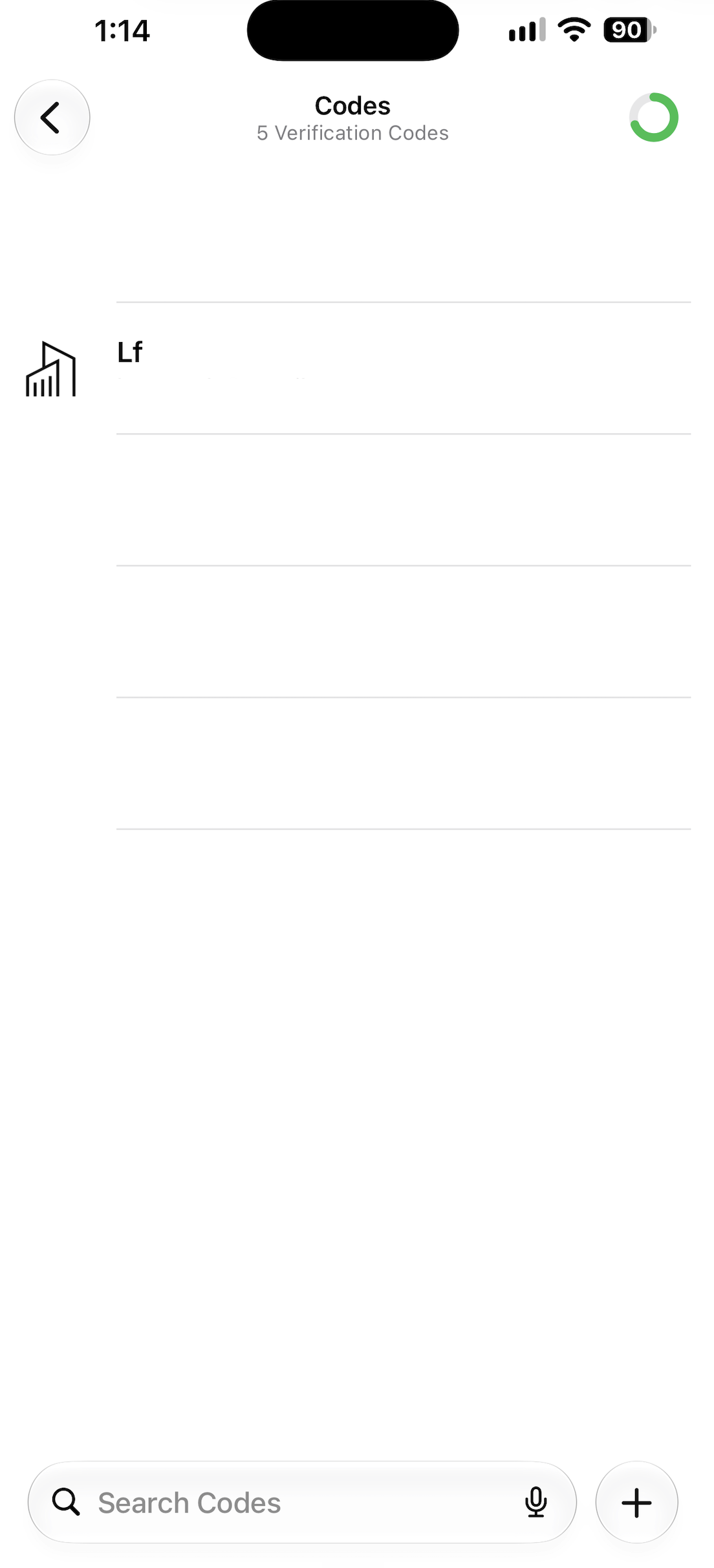
Open Codes in Passwords and find the entry you saved. Its name follows your saved login; the example below is named Lf.
4. Confirm the setup
Enter the current six-digit code from your authenticator into Launch Fast, then click Verify and finish.
Once the code is accepted, Launch Fast returns you to the page you came from. If you started from Authentication settings, your authenticator status will show Set up.
Choosing Set up later leaves setup unfinished. You will still need to complete verification before accessing protected Amazon tools.
The next time you are asked to verify
Open the Launch Fast entry in your authenticator and enter its current six-digit code.
On iPhone, the screen says Verify it’s you. On the web, it says Unlock Amazon tools; enter the code and click the button with the same label.
Seeing this prompt again does not mean you need to add the setup key again.
Help with verification
My code was not accepted
Check that you are using the authenticator entry for the correct Launch Fast account. Enter its current six-digit code, not the setup key or your Amazon verification code.
If the code changed while you were entering it, try the new code. On the web, click Try again to return to the code entry screen.
Apple Passwords did not open
Copy the Setup key from Launch Fast. Open Passwords → Codes → +, paste the key into Setup Key, and tap Use Setup Key. Save it to your Launch Fast login, then return to Launch Fast with the six-digit code it generates.
I changed phones or lost my authenticator
If you still have access to your saved Launch Fast authenticator entry, use the code it generates. If you no longer have access, contact support. Support will verify your identity before resetting your authenticator. You will then need to sign in again and complete a new setup.
Launch Fast does not currently issue recovery codes. Keep your authenticator entry and any backup of your setup key secure. Never share your setup key, QR code, or verification codes with anyone, including support.
Related release
See Amazon data, iPhone, and Launchie for the latest release overview, including Amazon account connections and the iPhone beta.