
PPC Research
Map competitor rankings, discover high-converting keywords, and model your ROI before you spend a single dollar on Amazon advertising.
Overview
With PPC Research, you can:
- Map the Market — See each keyword customers actually use to find products in your niche
- Identify Profit Gaps — Find "Low CPC Gems" and "Long-tail" opportunities that others missed
- Model Your Economics — View estimated CPCs, conversion rates, and purchase volumes to forecast your ROAS
- Build a Data-Backed Launch Plan — Export a ready-to-use list of keywords for your listing optimization and campaign structure
How It Works
- Market Definition. You provide a set of ASINs that define your competitive landscape
- Keyword Research. Launch Fast aggregates search terms associated with those products
- Metric Modeling — We calculate demand (Search Volume), cost (CPC/Bid Range), and efficiency (Conversion/Purchase) signals
- Competitive Overlay — We map the accurate ranking positions for each ASIN, allowing you to spot "blind spots" in their coverage
For the best results, choose products that a customer would genuinely compare during a single purchase decision. Mixing unrelated products will dilute your data and create "noisy" keyword sets.
Run Your First Report
Open PPC Research
Navigate to PPC Research in the left sidebar under the Launch section. You will land on the main search page where you can start a new analysis or revisit previous ones in your Research History.
Define your market (1–15 ASINs)
Paste up to 15 ASINs into the search input. You can press Enter or use a comma to add each ASIN to your set.
Pro Tip: Include a mix of:
- Market Leaders — To see what "high-coverage" looks like
- Mid-tier Challengers — To find where the most "stealable" traffic lives
- New Entrants — To see how they are successfully carving out space
Review the History Table
Each research session is saved automatically. The history table gives you a high-level summary of each niche:
- Market Name — Usually derived from the primary ASINs or category
- Avg Price — The price baseline for the products in that set
- Revenue & Volume — A quick view of monthly revenue and demand
Click "View" on a row to open the full interactive dashboard.
Analyzing Competitor Rankings
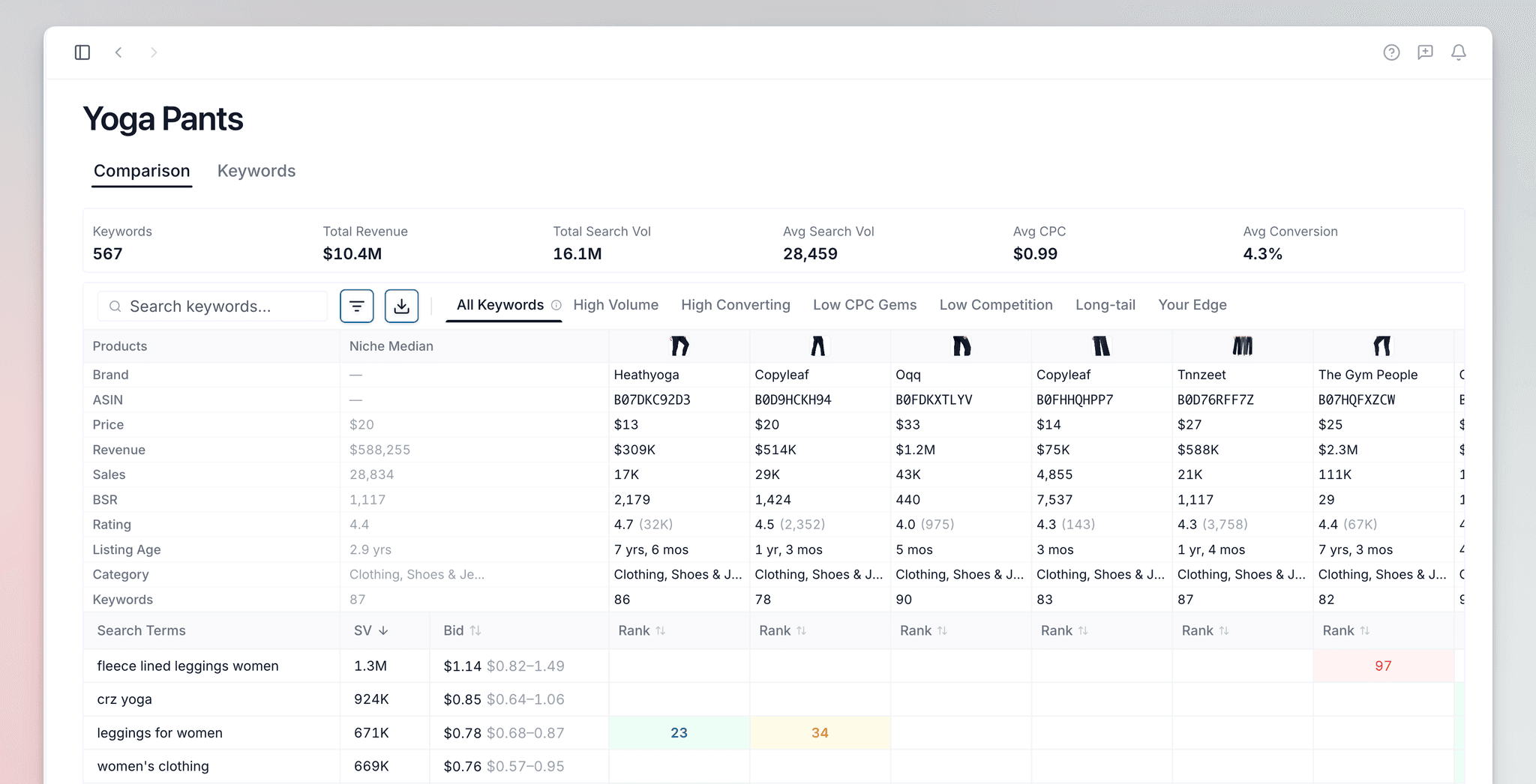
The Comparison Tab
The Comparison tab shows competitor keyword ranks side by side. Use it to find strong ranks, weak ranks, and rank gaps.
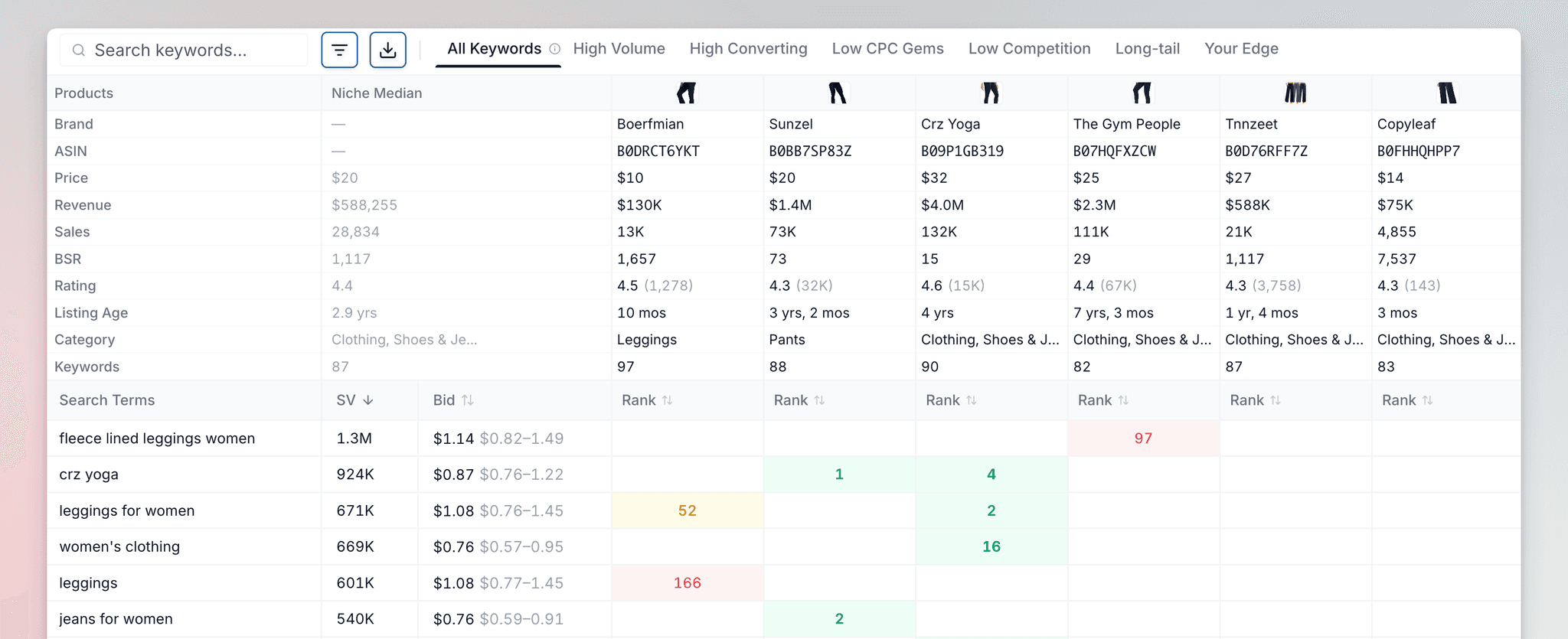
- Competitive Ranking Grid — A heat map that shows the organic rank of each competitor for each keyword
- Green (1-30). They dominate page one for this term
- Yellow (31-60). They rank but are not converting well
- Red (61+) — Weak positioning you can attack
- Blank. They do not rank at all—this is your opportunity to own the keyword
- Niche Benchmarking Table — Compare price, revenue, and BSR across all ASINs to understand the competitive baseline
- 90-Day Trends — Click an ASIN to see historical price and BSR movement for timing your entry
How to use this: Look for high-volume keywords where top sellers show Yellow, Red, or Blank cells. These are terms with proven demand but weak competition—perfect targets for your PPC campaigns and listing optimization.
The Keyword Tab
The Keyword tab helps you build your keyword strategy. Filter the full keyword list to find exactly the terms for your ads and listing copy.
Smart Filters — Surface the keywords that matter most for your strategy:
High Converting. Keywords with the best conversion rates. Prioritize these for Exact Match campaignsLow CPC Gems— High volume (1k+) but low cost (under $1.00). Your highest ROI ad opportunitiesUntapped Title— High-volume keywords competitors are not using in their titles. Add these to your listing to gain organic relevance fastYour Edge. Keywords where competitors rank weakest. Target these to steal market shareLow Competition— Only 1-2 products ranking. Easier to win both organically and with adsLong-tail— Specific, high-intent phrases with lower ad costs. Great for profitabilityHigh Volume— 10k+ monthly searches. Essential for your title and main image hooks
Use the "Export to Excel" button to download your filtered keywords. Import directly into Seller Central for campaign building or use for listing optimization.
Understanding the Metrics
Demand & Performance
| Metric | Definition | Strategic Value |
|---|---|---|
| Search Volume (SV) | Estimated monthly searches on Amazon | Sets the "ceiling" for your potential traffic |
| Purchases | Modeled monthly sales driven by this keyword | Identifies high-intent terms that actually lead to sales |
| Conversion | The modeled conversion rate for the niche | Helps you identify "ROI Kings" for your PPC campaigns |
Costs & Bidding
| Metric | Definition | Strategic Value |
|---|---|---|
| Avg CPC | The average cost for a single click | Used to model your break-even ACOS and daily budget |
| Bid Range | The 25th to 75th percentile of winning bids | Helps you set competitive initial bids in Seller Central |
Competition & Difficulty
| Metric | Definition | Strategic Value |
|---|---|---|
| Products | The raw count of competing listings | A basic measure of how "crowded" the shelf is |
| S/D (Supply/Demand) | Our weighted difficulty score | High S/D means you fight established, high-review leaders |
| Title Density | How many top competitors use this term in their title | Low density indicates a massive SEO opportunity to jump ahead |
| Competitors | Number of direct competitors indexed | Helps gauge the intensity of the "brand war" for that term |
Strategic Use Cases
1. The "First 10" Campaign
Do not start with 1,000 keywords. Use the High Converting filter to find the 10-15 terms that drive the most sales in your niche. Launch these in an Exact Match campaign to build early sales velocity and ranking history.
2. Spotting Competitor Blind Spots
Switch to the Comparison tab and look for keywords where the market leaders (the Green cells) have empty spots or rank in the Red. These are terms they neglected and perfect for you to attack with high-relevance ad copy.
3. Title Optimization
Find keywords with high Search Volume but low Title Density. By including these in your product title, you can frequently rank organically much faster than by fighting for the most "obvious" high-density terms.