
Product Sniper
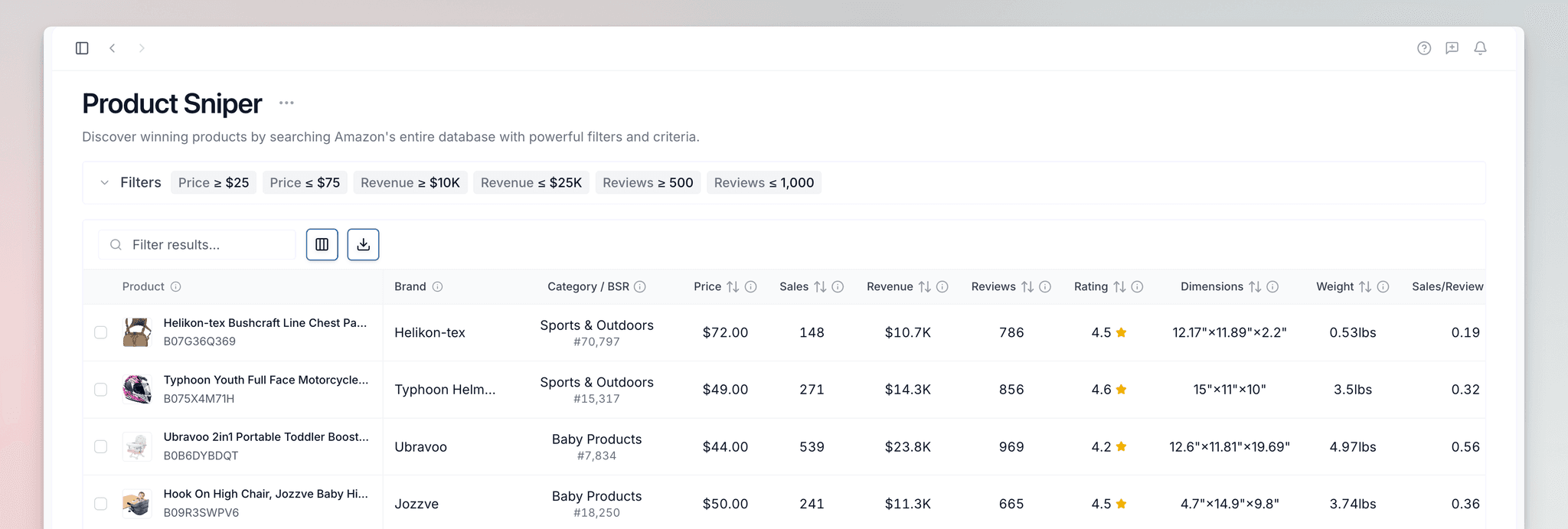
Scan Amazon's entire catalog with precision filters to surface hidden gems and high-potential products that competitors miss. Cast a wide net with specific criteria to discover opportunities you did not know existed.
Overview
While Market Research helps you validate a specific niche, Product Sniper helps you find the niches you did not even know existed. By casting a wide net with specific filters, you can surface winners that competitors frequently miss.
- Speed — Filter through millions of products in seconds
- Precision — Target accurate revenue, size, and competition bands
- Opportunity — Identify "hidden gems" with high sales but low review counts
- Strategy — Test multiple product ideas without manual searching
Quick Start Guide
Access the Tool
Click "Product Sniper" in the Research section of your sidebar. You will start with the Simple Filter view for quick searches.
Define Your Criteria
Enter your target ranges for Price, Revenue, and Reviews.
Example criteria: Price $30–$60, Revenue Min $15k, Reviews Max 500.
Run & Refine
Click Search to view results. If you want more granular control (like product dimensions or brand exclusions), toggle Advanced Filters.
Save & Analyze
Select promising products and click Save. View your saved products later under the Saved Products tab.
Filter Deep Dive
Simple Filters
Located at the top of the page, these are your "Big Four" metrics for rapid discovery:
- Price — Target products within your investment range
- Revenue — Confirm there is enough monthly volume to justify a launch
- Reviews — Filter out high-competition "sharks"
- Category — Narrow your search to specific Amazon departments or niches
Advanced Filters
Toggle Advanced Filters to access professional-grade research criteria, grouped into three logical categories:
Basic Metrics — Deepen your core research with additional performance data:
- Rating — Find products with 4.5+ stars (high quality) or under 4.0 stars (improvement opportunities)
- Listing Age — Target "New Winners" launched in the last 3-12 months
- Monthly Revenue — Set accurate minimum and maximum thresholds for monthly revenue
Size & Logistics — Optimize for profit margins by filtering for physical specifications:
- Dimensions (L/W/H) — Stay within "Standard Size" limits to avoid oversized FBA fees
- Weight — Target lightweight items to minimize shipping costs and storage overhead
Discovery & Branding — Surface hidden opportunities using unique Amazon data points:
- Best Seller Rank (BSR) — Target specific sales velocity bands within a category
- Sales to Review Ratio — Find products selling thousands of units with very few reviews
- Accurate/Exclude Brand — Filter out major competitors or analyze a specific brand's catalog
- Title Keyword — Search for specific materials (e.g., "bamboo") or features (e.g., "USB-C")
Use the Exclude Brand filter to remove "Amazon" and "Basics" from your results. This ensures you look at opportunities for private label sellers, not competing directly with the retail giant.
Strategic Approaches
Discover Fast-Growing Recent Launches
- Listing Age: Max 6 months
- Revenue: Min $5,000
- Reviews: Max 200
- BSR: Max 20,000 in category
Why it works: Recently launched products generating revenue indicate emerging trends and customer demand before markets become saturated.
Target Proven Winners
- Revenue: Min $50,000
- Reviews: Min 1,000
- Rating: Min 4.5
- Price: Min $30
Why it works: These are established winners proving sustained customer demand. Analyze what makes them successful to inform differentiation strategies.
Goal: Find products you can improve.
- Rating: Max 3.8
- Revenue: Min $20,000
- Strategy: Find products with high demand but unhappy customers. Read their reviews to find exactly what to fix in your version.
Managing Your Results
- Selection — Use checkboxes to select multiple products for batch saving
- Save Products — Click the Save button (top right) to move products to your Saved Products List
- Export — Download your entire search result as an Excel file for offline analysis
- Search within Results — Use the search bar above the table to find specific keywords or products within your current results
- Column Customization — Click the columns icon to hide or show specific data points