
Listing Builder
Transform an ASIN into a fully optimized Amazon listing. Our AI analyzes competitors, extracts keyword opportunities, and studies customer reviews—then writes conversion-focused titles, bullets, descriptions, and backend keywords tailored to your product.
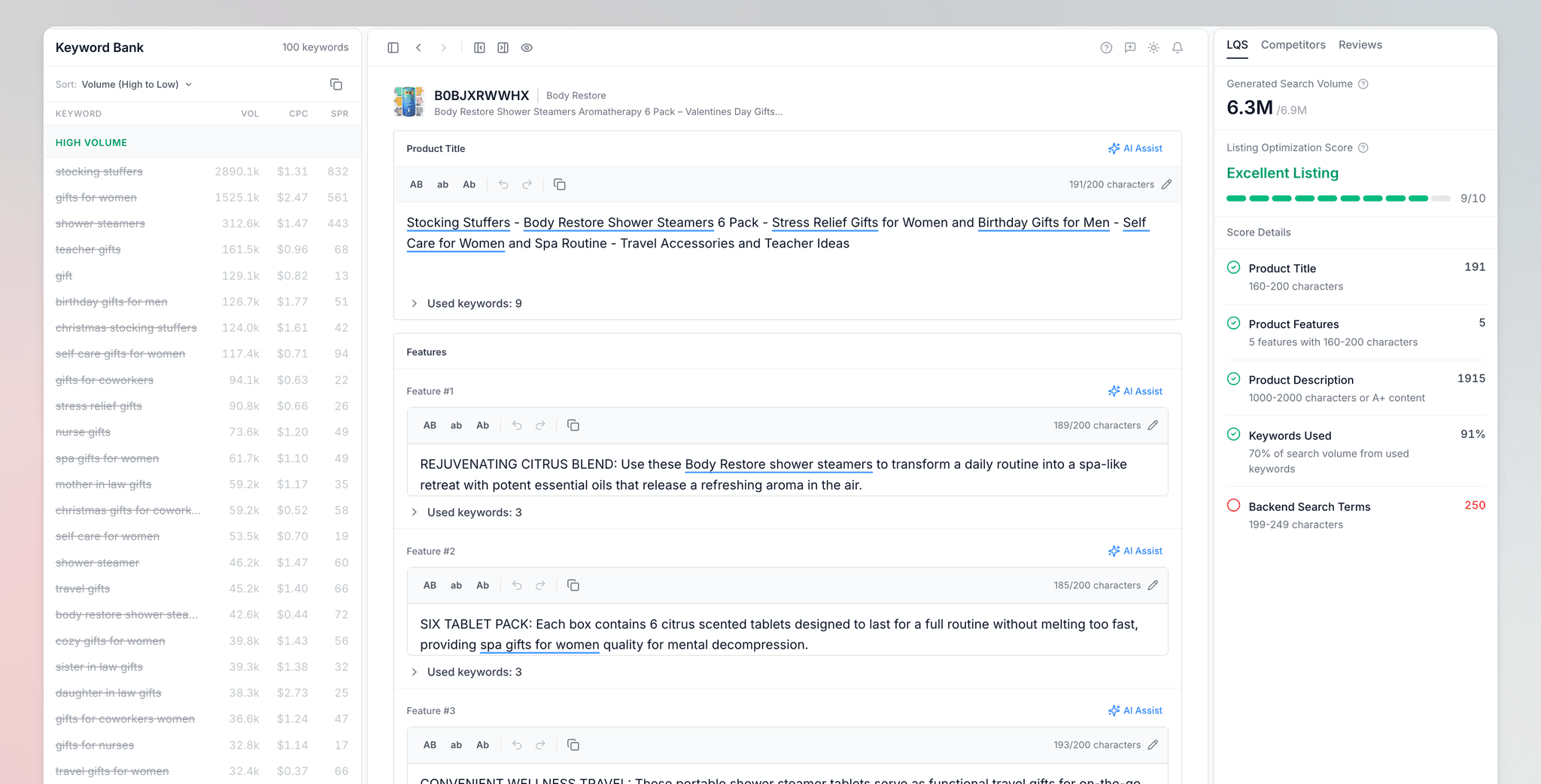
Overview
Use Listing Builder to:
- Generate complete listings with AI-written titles, 5 bullets, descriptions, and backend keywords
- Analyze top 10 competitors to understand winning patterns and positioning
- Research keywords automatically with search volume, CPC, and SPR metrics
- Understand customer motivations and complaints through AI review analysis
- Refine individual fields with AI Assist that maintains keyword deduplication
- Track keyword usage across all listing sections with real-time highlighting
How to Use Listing Builder
Access Listing Builder
Click "Listing Builder" in the left sidebar under the Optimize section. You will see your saved projects or an empty state prompting you to create your first listing.
Enter Your ASIN
Click "New Listing" to open the creation modal. Enter your Amazon ASIN (10 characters) and select your marketplace. The system will validate the ASIN before proceeding.
Each listing generation uses 1 AI credit from your monthly quota (100/month). You can check your remaining credits in the editor's AI Assist panel.
Watch the 5-Step Pipeline
After submitting, you will see a progress modal showing each pipeline stage:
- Finding Product — Fetches product details and up to 200 keywords
- Finding Competitors — Discovers 20 candidates via keyword overlap
- Getting Data — AI selects top 10 competitors and enriches with sales data
- Analyzing Reviews — Extracts customer motivations and pain points
- Writing Listing — Parallel AI agents generate all listing content
The entire process typically completes in 30-60 seconds.
Review in the Editor
when complete, you are redirected to the three-panel editor:
- Left Panel: Keyword Bank with volume tiers (High/Medium/Low)
- Center: Listing fields with keyword highlighting
- Right Panel: Tabs for LQS Score, Competitors, and Reviews
Review the generated content and make a adjustments directly in the editor.
Refine with AI Assist
Click the "AI Assist" button on a field to open the prompt popup. Choose a quick action or type a custom instruction:
- Add more keywords
- Make shorter/longer
- Improve readability
- Be more specific
AI Assist rewrites the field while avoiding keywords used in other sections—maximizing your SEO coverage.
Copy and Export
When satisfied, use the copy buttons on each field to transfer content to Seller Central. Your project auto-saves. You can return anytime to make updates or compare against competitors.
Understanding the Editor
Keyword Bank (Left Panel)
The keyword bank displays all keywords discovered for your product, organized by search volume:

| Tier | Volume Threshold | Color |
|---|---|---|
| High Volume | 5,000+ searches | Green |
| Medium Volume | 1,500-4,999 | Amber |
| Low Volume | Under 1,500 | Gray |
Keywords used in your listing appear with strikethrough styling. Use the sort dropdown to organize by Volume, CPC, SPR, or alphabetically.
Listing Editor (Center)

Each field shows:
- Character counter with color warnings near limits
- Keyword highlighting showing which keywords you used
- AI Assist button for field-specific rewrites
- Used Keywords table (expandable) showing keyword coverage
Character Limits
| Field | Limit | Format |
|---|---|---|
| Title | 200 chars | Title Case, hyphen separators |
| Bullets | 200 chars each | ALL CAPS HOOK: Description |
| Description | 2,000 chars | Flowing prose paragraphs |
| Backend Keywords | 250 chars | Space-separated, lowercase |
Simple View Mode
Toggle between Pro View (default) and Simple View using the eye icon in the editor header. Simple View provides a streamlined, read-only presentation for quick review and export.
| Feature | Pro View | Simple View |
|---|---|---|
| Layout | Three-panel (Keyword Bank, Editor, Analysis) | Single-column stacked cards |
| Right Panel | Full tabs (Competitors, Reviews, LQS) | Hidden |
| Editing | Full inline editing with AI Assist | Read-only display |
| Keyword Highlighting | In textarea with real-time updates | Visual underlines on text |
| Copy Actions | A copy button for each field | A copy button for each section |
| Best For | Active editing and optimization | Quick review and export |
Simple View Components:
- Score Card — LQS score with keyword coverage stats
- Title — Product title with keyword highlighting (blue underlines)
- Product Features — Numbered bullets with ALL CAPS hooks bolded
- Description — Full description with keyword highlighting
- Backend Keywords — Plain text display
- Keyword Bank — Compact sortable table showing keyword, volume, and usage status
Your view preference is saved automatically and persists across sessions.
Competitor Analysis

Click the "Competitors" tab in the right panel to view the 10 competitors selected by AI. Each competitor card shows:
- Revenue — Monthly sales formatted ($1.06M for millions)
- Price — Current listing price
- BSR — Best Seller Rank in category
- Rating — Star rating and review count
- Listing Age — How long the product was live
- Bullet Points — Full bullets with ALL CAPS hooks highlighted
Click a competitor to expand their full listing details, including all images and description.
Study competitor bullet patterns to understand what hooks and benefits resonate in your category. The AI uses these patterns when generating your bullets.
Review Analysis

The "Reviews" tab shows AI-analyzed insights from your product and top competitors:
Customer Demographics
A gender split showing the approximate male/female breakdown of buyers based on review language patterns.
Purchase Motivators
What makes customers buy, ranked by frequency:
Must-address benefits. Feature these prominently in your first 2 bullets and title.
Supporting benefits. Include in remaining bullets or description.
Common Complaints
Pain points mentioned in negative reviews. Address these proactively in your listing to differentiate from competitors who ignore them.
Consumer Profile
Attributes like age group, primary use case, lifestyle, and purchase context—helping you tailor your messaging to the actual buyer persona.
Listing Quality Score

The "LQS" tab shows your Listing Quality Score (0-100) with breakdowns by section:
| Section | What is Measured |
|---|---|
| Title | Keyword count and total search volume captured |
| Bullets | Keyword distribution across all 5 bullets |
| Description | Keyword density and variety |
| Backend | Unique keywords not in visible listing |
Click a section to see a popover with detailed stats including total search volume captured (formatted with M for millions).
Best Practices
Amazon indexes title keywords left-to-right. Put your highest-volume keyword first, not your brand name.
Do not repeat keywords. AI Assist automatically avoids keywords used in other sections, maximizing your indexable keyword count.
Format bullets as "BENEFIT HOOK: Description with keywords". The capitalized hook grabs attention while keywords follow naturally.
Backend keywords must contain terms NOT in your visible listing. Include misspellings, synonyms, and Spanish translations if related.
Frequently Asked Questions
Rank Tracker
Track Amazon keyword rankings daily, monitor competitors, find ranking changes, and prioritize keywords that can improve product visibility and sales.
Smart Super URL
Create optimized Amazon URLs for product launches, ranking strategies, and marketing campaigns with built-in click tracking and analytics.