
Setup
Analyze connected Amazon account data from Claude with Launch Fast MCP.
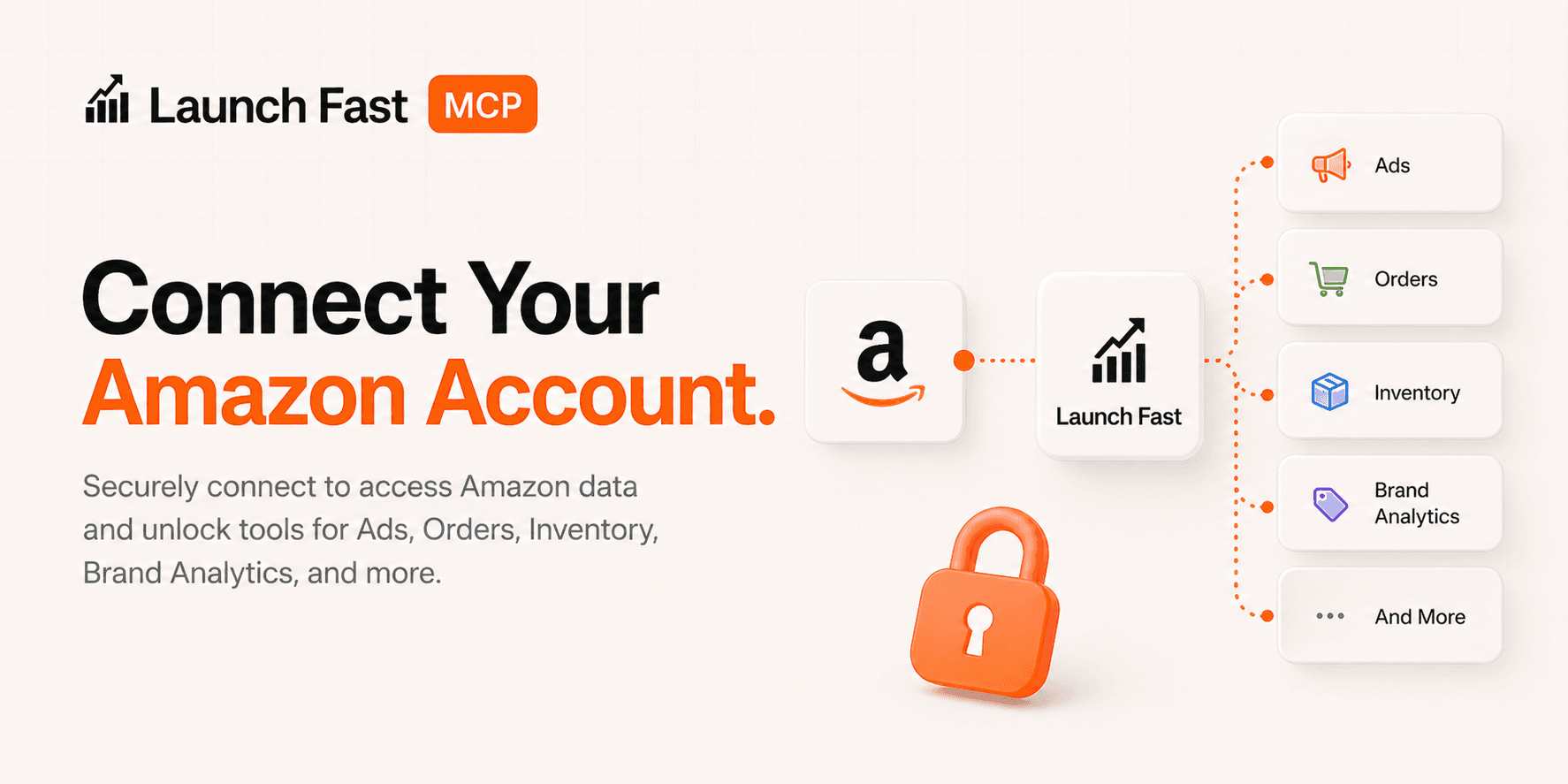
Amazon Account Tools let Claude examine Amazon seller data in Launch Fast. Ask plain-language questions about sales, inventory, finance, Brand Analytics, catalog performance, search performance, and Amazon Ads. You do not have to export or combine reports.
Research & Discovery tools evaluate markets from Launch Fast research data. Amazon Account Tools use data from your own connected Amazon account after it is authorized and synced in Launch Fast.
What These Tools Are For
| Use case | What Claude can help summarize |
|---|---|
| Sales review | Recent Amazon sales, top products, orders, ASINs, SKUs, and sales trends. |
| Inventory risk | Low-stock products, days of cover, and inventory pressure based on recent velocity. |
| Finance review | Fees, settlements, ledger activity, order financials, and financial pressure. |
| Brand Analytics | Query performance, search terms, clicked ASINs, and catalog/search visibility. |
| Sponsored Products | Product, targeting, search term, campaign, and diagnostics reporting. |
| Plain-language account review | What grows, what needs attention, and which areas deserve deeper investigation. |
What You Must Have First
| Requirement | Why it matters |
|---|---|
| Active Launch Fast account with MCP access | Claude can only call Launch Fast MCP tools for authenticated users with MCP-enabled access. |
| Connected Amazon Seller Central/SP-API account | Required for sales, inventory, finance, Brand Query Performance, and catalog/search account reporting. |
| Connected Amazon Ads account | Required for Sponsored Products ads reporting and diagnostics. |
| Synced reporting data | Claude can only analyze data that Launch Fast imported or can access. |
| Matching date range | If you ask for dates outside the synced reporting window, results can be empty. |
Where To Connect Amazon
Connect Amazon from inside Launch Fast.
Open Launch Fast Settings
Open Launch Fast, go to Settings, then open Amazon.
Choose The Amazon Connection
Use Amazon Seller Central / SP-API for sales, inventory, finance, and Brand Analytics tools. Use Amazon Ads for Sponsored Products reporting and ads diagnostics.
Complete Amazon Authorization
Finish the Amazon authorization flow in the browser, then return to Launch Fast.
Wait For Sync
Wait for the first reporting sync to finish before asking Claude for full account analysis.
Test From Claude
Ask a broad account availability question first, then move into sales, inventory, finance, Brand Analytics, or ads analysis.
After the account is connected, Claude can use Launch Fast MCP tools to inspect the synced data.
Seller Central Vs Amazon Ads
Launch Fast separates seller account reporting from advertising reporting.
| Connection | Powers these MCP tools |
|---|---|
| Amazon Seller Central / SP-API | Sales, Inventory, Finance, Brand Query Performance, Brand Search Terms Intelligence, Brand Search Catalog Performance |
| Amazon Ads | Ads Product Performance, Ads Targeting Performance, Ads Search Term Performance, Ads Campaign Performance, Ads Diagnostics |
If an Ads tool says no account is connected, connect Amazon Ads. If a sales, inventory, finance, or Brand Analytics tool says no account is connected, connect Seller Central/SP-API.
Before your first sync
After you connect Amazon, each Amazon tool returns a sync block. Its data_status is not_synced_yet, backfilling, or ready, with a sentence explaining the status. The first sync usually finishes within an hour. Launch Fast sends an in-app notice and an email when it is ready. If a tool says the connection needs to be reconnected, open Settings, then the Amazon tab, and press Reconnect.
Sync Timing
After connecting Amazon, data cannot appear instantly.
| Sync stage | What to expect |
|---|---|
| Authorization | Amazon authorization must complete immediately after approval. |
| Connection status | Basic account connection status must appear soon after returning to Launch Fast. |
| Reporting sync | Reporting data can take time to import, normalize, and become available. |
| Faster data | Recent sales and inventory can appear sooner than heavier historical reports. |
| Slower data | Finance, Brand Analytics, and Ads reporting can take longer depending on Amazon report availability and sync queue timing. |
| First full analysis | If you just connected the account, wait before asking Claude for a full historical analysis. |
Recommended first test after connecting:
Show what Amazon accounts and reporting data are available in Launch Fast.Then try a broad recent query:
Summarize my Amazon sales for the last 7 days.If that works, move into narrower ASIN, SKU, campaign, or Brand Analytics questions.
Date Ranges Matter
Amazon Account Tools work best when the date range matches data Launch Fast synced.
| Prompt type | Example |
|---|---|
| Accurate sales window | Analyze my Amazon sales from April 27 to April 28, 2026. |
| Recent ads window | Show my Amazon Ads campaign performance for the last 30 days. |
| Inventory velocity | Find low-stock products using the last 30 days of sales velocity. |
If results are empty, use a broader or more recent date range. Remove narrow filters. Make sure that the related Amazon connection is active. For a new connection, wait for the sync to finish.
Optional Filters
Claude can usually choose filters automatically. These filters help when you have multiple accounts, marketplaces, products, or campaigns.
| Filter | Used for |
|---|---|
seller_id | Narrow Seller Central/SP-API tools to one Amazon seller account. |
connection_id | Narrow tools to one Launch Fast Amazon connection. |
marketplace_id | Narrow Seller Central or Brand Analytics data to one marketplace. |
marketplace_code | Narrow Amazon Ads data to one marketplace/profile code. |
profile_id | Narrow Amazon Ads tools to one ads profile. |
account_id | Narrow Amazon Ads tools to one ads account. |
asin | Analyze one product ASIN. |
sku | Analyze one seller SKU. |
campaign_id | Analyze one Amazon Ads campaign. |
campaign_name | Find or analyze a campaign by name. |
date_from, date_to | Set an accurate reporting window. |
Filters are mainly useful for troubleshooting or precise analysis when more than one account, marketplace, product, or campaign could match.
Read-Only Safety
Amazon Account Tools are read-only.
| They can inspect and summarize | They do not change |
|---|---|
| Sales, inventory, finance, Brand Analytics, catalog/search performance, and Sponsored Products reporting data synced into Launch Fast. | Amazon listings, prices, inventory, shipments, refunds, customers, Seller Central settings, campaigns, bids, budgets, keywords, targeting, or campaign status. |
Claude can recommend actions. The user must make all actual Amazon account changes outside Launch Fast MCP.
Available Tool Groups
Seller Central / SP-API Reporting
| MCP tool | Tool page |
|---|---|
amazon_sales_lookup | Amazon Sales |
amazon_inventory_lookup | Amazon Inventory |
amazon_finance_lookup | Amazon Finance |
amazon_brand_query_performance_lookup | Brand Query Performance |
amazon_brand_search_terms_lookup | Brand Search Terms Intelligence |
amazon_brand_search_catalog_performance_lookup | Brand Search Catalog Performance |
Amazon Ads Reporting
| MCP tool | Tool page |
|---|---|
amazon_ads_product_performance_lookup | Amazon Ads Product Performance |
amazon_ads_targeting_performance_lookup | Amazon Ads Targeting Performance |
amazon_ads_search_term_performance_lookup | Amazon Ads Search Term Performance |
amazon_ads_campaign_performance_lookup | Amazon Ads Campaign Performance |
amazon_ads_performance_diagnostics | Amazon Ads Diagnostics |
Good First Prompts
After connecting Seller Central/SP-API:
Summarize my Amazon sales for the last 7 days and show top products.Show low-stock inventory risks based on recent sales velocity.Summarize Amazon fees and settlements for the last 30 days.After connecting Amazon Ads:
Summarize my Sponsored Products performance for the last 30 days.Find campaigns with high spend and weak sales.Scan my ads data for wasted spend and harvest opportunities.For a full account review:
Analyze my Amazon sales, inventory, finance, Brand Analytics, and Sponsored Products data for the last 30 days. Show growth, problems, and the items that I must investigate next.Common Error
Please connect your amazon account on launchfast
This means the requested tool needs connected Amazon data that is not available for the authenticated Launch Fast account.
| Common cause | What to do |
|---|---|
| Seller Central/SP-API is not connected. | Connect Seller Central/SP-API in Settings -> Amazon. |
| Amazon Ads is not connected. | Connect Amazon Ads in Settings -> Amazon. |
| Wrong connection type for the tool. | Match the tool to Seller Central/SP-API or Amazon Ads. |
| Connection expired or needs reauthorization. | Reconnect or reauthorize the account. |
| Reporting data has not synced yet. | Wait for sync to finish. |
| Date range is before data exists. | Try a broader or more recent date range. |
| Filters exclude matching rows. | Remove seller, marketplace, profile, ASIN, SKU, or campaign filters. |
Empty Results
Empty results are not always errors. The connection can work correctly even when no data matches the query.
| Example | What it can mean |
|---|---|
| ASIN returns no sales | The ASIN had no sales in that date range. |
| SKU does not match | The SKU can be spelled differently in Amazon. |
| Campaign returns no performance | The campaign cannot spent during that period. |
| Marketplace is empty | The selected marketplace had no matching rows. |
| Brand Analytics is empty | Brand Analytics data cannot be available for that ASIN or reporting period. |
| Finance detail is missing | Finance reports for that settlement or order cannot synced yet. |
When this happens, ask Claude to broaden the query:
Try the same analysis for the last 30 days and remove ASIN, SKU, and marketplace filters.Recommended Workflow
Connect Seller Central
Connect Amazon Seller Central/SP-API in Settings -> Amazon.
Connect Amazon Ads
Connect Amazon Ads if you want advertising analysis.
Wait For First Sync
Wait for the first reporting sync before asking for detailed historical reporting.
Ask What Is Available
Ask Claude what Amazon account data is available in Launch Fast.
Start Broad
Start with a broad 7-day or 30-day summary.
Narrow The Analysis
Narrow into ASINs, SKUs, campaigns, search terms, or finance details.
Act Manually
Use Claude's recommendations as decision support, then make all account changes manually in Amazon or Launch Fast.