
Visual Research
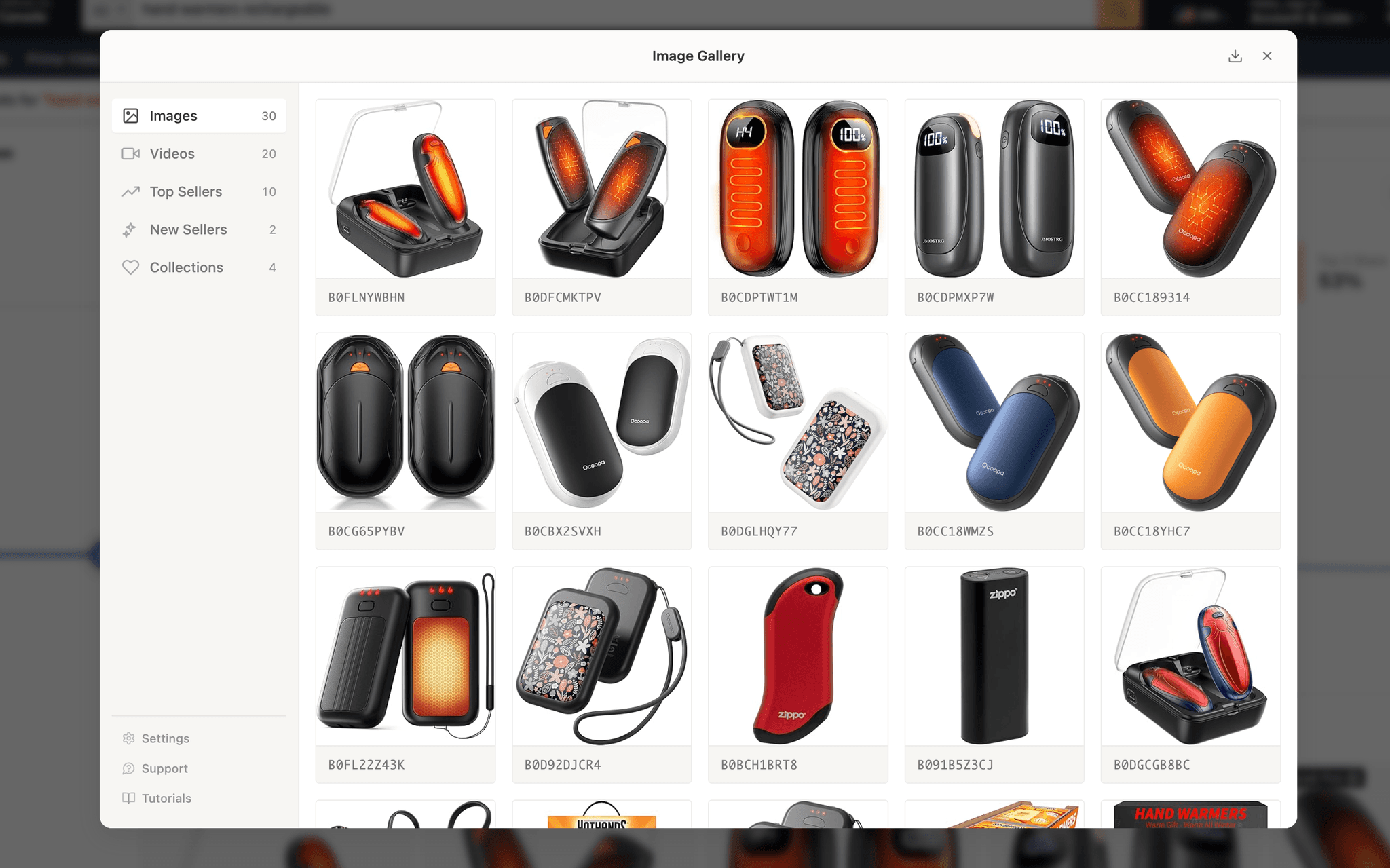
Browse each product image and video from your market research in one grid. Filter by top sellers or new entrants, zoom into individual shots, download in bulk as a zip, and save favorites to collections.
Overview
Listing images directly affect conversion. When you research a market or product, Launch Fast collects each listing image and video from the analyzed products. You can see how each competitor in your niche presents their product. The gallery organizes them by category:
Gallery Views
The gallery has three levels. Click to go deeper, use the back button to go up.
| View | What you see |
|---|---|
| Grid | One thumbnail for each product from your research. Hover for the heart icon. Use sidebar categories to filter by Images, Videos, Top Sellers, or New Sellers. |
| Product | Click a thumbnail to see each image from that listing. Images are numbered on hover. |
| Detail | Click again for a full-size image with a thumbnail strip below and navigation arrows. A panel on the right shows ASIN, brand, price, monthly revenue, units, rating, and reviews. |
Sidebar Categories
The left sidebar has five filter categories, each with a count badge.
| Category | What it shows |
|---|---|
| Images | All products with listing images. Default view when the gallery opens. |
| Videos | Products with video listings. Only appears if videos exist in the current data. Thumbnails show a play badge. |
| Top Sellers | Top 10 products by revenue. |
| New Sellers | Products listed within the last 6 months. |
| Collections | Products you hearted, organized into named collections. |
Downloads
Download a single image from detail view, or click the header button to bulk-export a zip organized by ASIN. A progress notification tracks the download and shows how many images were skipped if one fails.
| View | What gets downloaded |
|---|---|
| Grid view | All images from all products in the current category filter |
| Product view | All images for that specific product |
| Detail view | All images for the current product |
| Collection view | All images from products saved in that collection |
Video Playback
Switch to the Videos category in the sidebar to see products with video listings. Thumbnails show a play badge overlay and clicking one opens the video player with the same navigation controls as images.
The Videos category only appears in the sidebar if at least one product in your research has a video. Not all products have videos.
Saving to Collections
Save products to organize your visual research across sessions.
Heart a product
Hover over a product thumbnail in grid view (or open the detail view) and click the heart icon. A collection picker appears.
Choose a collection
Select an existing collection or create a new one by typing a name. Products are saved at the ASIN level. All images for that listing are included.
Browse saved products
Click Collections in the sidebar to see your saved collections as cards. Each card shows a thumbnail, collection name, and item count. Click a card to browse its contents.
Inside a collection view, you can remove individual products by clicking the X icon on their thumbnail. Collections sync with your account and are available across devices.
Best Practices
How to get the most out of visual research.
- Study top sellers first. Use the Top Sellers filter to see how the highest-revenue products photograph their listings. Look at the number of images, types of shots (lifestyle, infographic, white background), and which features they highlight.
- Compare new sellers for trends. New Sellers (listed within 6 months) show what is currently being launched. Their images frequently reflect newer photography styles or formats that established sellers have not adopted yet.
- Download for your listing brief. Bulk-download competitor images as a zip and share with your photographer or designer as a reference. Use detail view to check revenue alongside images so you know which visual approaches actually convert.
- Watch competitor videos. If competitors have video listings, watch them to see how they demonstrate the product. Videos show use cases and selling points that stills cannot.
Frequently Asked Questions
Common questions about visual research.
Supplier Research
Search a keyword on Amazon. Get related Alibaba suppliers, prices, MOQ, years in business, and bulk price tiers in one modal.
Profit Calculator
Estimate net profit, Amazon fees, and margin for a product before you source it. Auto-fills from your research data and breaks down each cost line.