
Overview
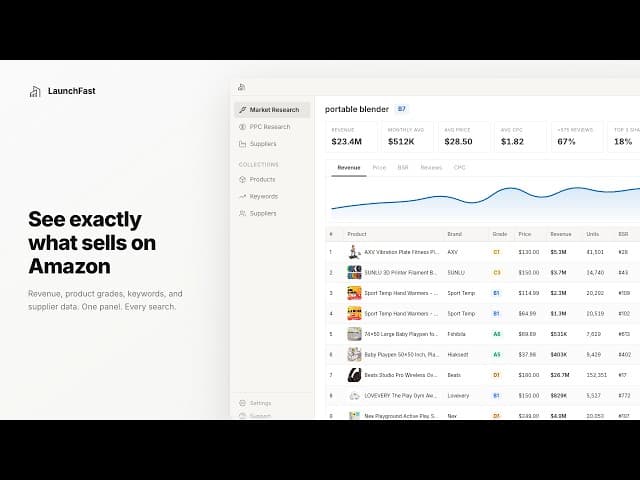
Launch Fast lives inside Amazon. Install the extension and see revenue estimates, keyword data, supplier matches, and profitability signals directly on Amazon search and product pages.
What You Can Do
The extension works on 12 Amazon marketplaces. When signed in, it activates automatically on supported pages as you browse.
Use the Chrome extension to:
- Analyze markets: See revenue, price, BSR, and review distribution for a search term instantly
- Evaluate products: Get product sales estimates, variation data, and profit data on the page
- Research keywords: Find high-volume, low-competition keywords with CPC and ranking data
- Source suppliers: Pull Alibaba supplier matches with MOQ, pricing, and quality scores
- Save research: Organize products, keywords, and suppliers into collections you can revisit anytime
- Calculate profit: Run FBA fee breakdowns and margin analysis without leaving Amazon
Getting Started
Install the extension and connect your Launch Fast account to start seeing data on Amazon.
Install from Chrome Web Store
Search for "Launch Fast" in the Chrome Web Store, or use the direct link from your dashboard. Click "Add to Chrome" and confirm the permissions. The Launch Fast icon appears in your browser toolbar.

Sign in to your account
Navigate to an Amazon page and click the Launch Fast icon in your toolbar to open the settings panel. Click "Sign In" and enter your Launch Fast email and password. When connected, you will see a green status badge.
You must have an active Launch Fast subscription to use the extension.
Search a keyword on Amazon
Go to Amazon and search for a product keyword such as "yoga mat" or "portable blender." The extension starts automatically. You will see a market summary banner above the results. A product card appears below each listing.
Open the research modal
Click the chart icon on the market summary banner to open the Deep Dive Dashboard. It is your main research workspace with full-screen tabs for product data, keywords, CPC, suppliers, and AI reports.
Where Things Appear
The extension adds data to two Amazon page types. Search pages and product pages use different surfaces.
When you search a keyword on Amazon, you will usually see:
| Surface | Location | What it shows |
|---|---|---|
| Market Summary Banner | Top of search results, below Amazon's search bar | Market-level KPIs including total revenue, average price, average reviews, product count, and market grade |
| Insert Cards | Inline below each product listing | Product revenue, BSR, review count, and a compact quality indicator |
| Deep Dive Dashboard | Full-screen overlay (click banner or a call-to-action) | Tabs with product data, keywords, CPC, suppliers, and AI reports |
When you visit a specific product (ASIN page), two things appear:
| Surface | Location | What it shows |
|---|---|---|
| Product Banner | Top of the product page, below Amazon's nav | Single-product KPIs, including revenue, units sold, BSR, review velocity, and product grade |
| Deep Dive Dashboard | Full-screen overlay (click banner to open) | Same research tabs, pre-loaded with this product's data plus variation analysis |
The product page banner shows data scoped to the ASIN you view. The Deep Dive Dashboard includes both the ASIN data and variation breakdowns for listings with multiple sizes, colors, or styles.
Feature Map
Each feature below maps to a deeper guide so you can keep going when the extension view is not enough.
Validate a keyword by checking revenue, pricing, reviews, and market competitiveness, then move to the deeper tabs if you want more detail.
Read the guide →Review a single listing in more detail with sales history, variation analysis, and profitability direction.
Read the guide →Find competitor keywords in a comparison matrix. See search volume, CPC estimates, and ranking positions for each ASIN.
Read the guide →Find matched Alibaba suppliers for products and review MOQ, pricing, quality signals, and certifications.
Read the guide →Browse competitor product images and videos in a filterable grid with bulk downloads and collections.
Read the guide →Keep products, keywords, and supplier leads together so your research has structure across sessions.
Read the guide →Estimate net profit, Amazon fees, and margin for a product with auto-filled research data.
Read the guide →Settings & Appearance
Click the Launch Fast icon in your browser toolbar on an Amazon page to open the settings panel. From here you can manage your account, toggle light or dark mode, and access quick links to the dashboard, documentation, and support.
Supported Marketplaces
Launch Fast works on 12 Amazon marketplaces worldwide.
| Marketplace | Domain | Revenue data | Keyword data | Supplier data |
|---|---|---|---|---|
| United States | amazon.com | Yes | Yes | Yes |
| United Kingdom | amazon.co.uk | Yes | Yes | Yes |
| Germany | amazon.de | Yes | Yes | Yes |
| France | amazon.fr | Yes | Yes | Yes |
| Italy | amazon.it | Yes | Yes | Yes |
| Spain | amazon.es | Yes | Yes | Yes |
| Canada | amazon.ca | Yes | Yes | Yes |
| Australia | amazon.com.au | Yes | Yes | Yes |
| India | amazon.in | Yes | Limited | Yes |
| Japan | amazon.co.jp | Yes | Limited | Yes |
| Mexico | amazon.com.mx | Yes | Limited | Yes |
| Brazil | amazon.com.br | Yes | Limited | Yes |
The extension automatically detects which Amazon marketplace you are on and loads the correct data. No manual selection needed.
Best Practices
Get the most out of the extension with these tips.
- Start broad, then narrow your focus.
Start with a broad keyword to understand market-level demand and margin potential, then narrow down to variants with stronger signals.
- Use the Deep Dive Dashboard for detailed analysis.
Use the dashboard for comparisons, keyword diagnostics, and supplier checks. Keep inline cards for quick signals during browsing.
- Save opportunities as you evaluate them.
Save promising ASINs, keywords, and supplier leads into collections so you can continue research without starting over.
- Validate on the product page.
Use search results to triage. Confirm critical metrics on the product detail page before moving into deep research.
Frequently Asked Questions
Common questions about installing and using the extension.