
PPC Research
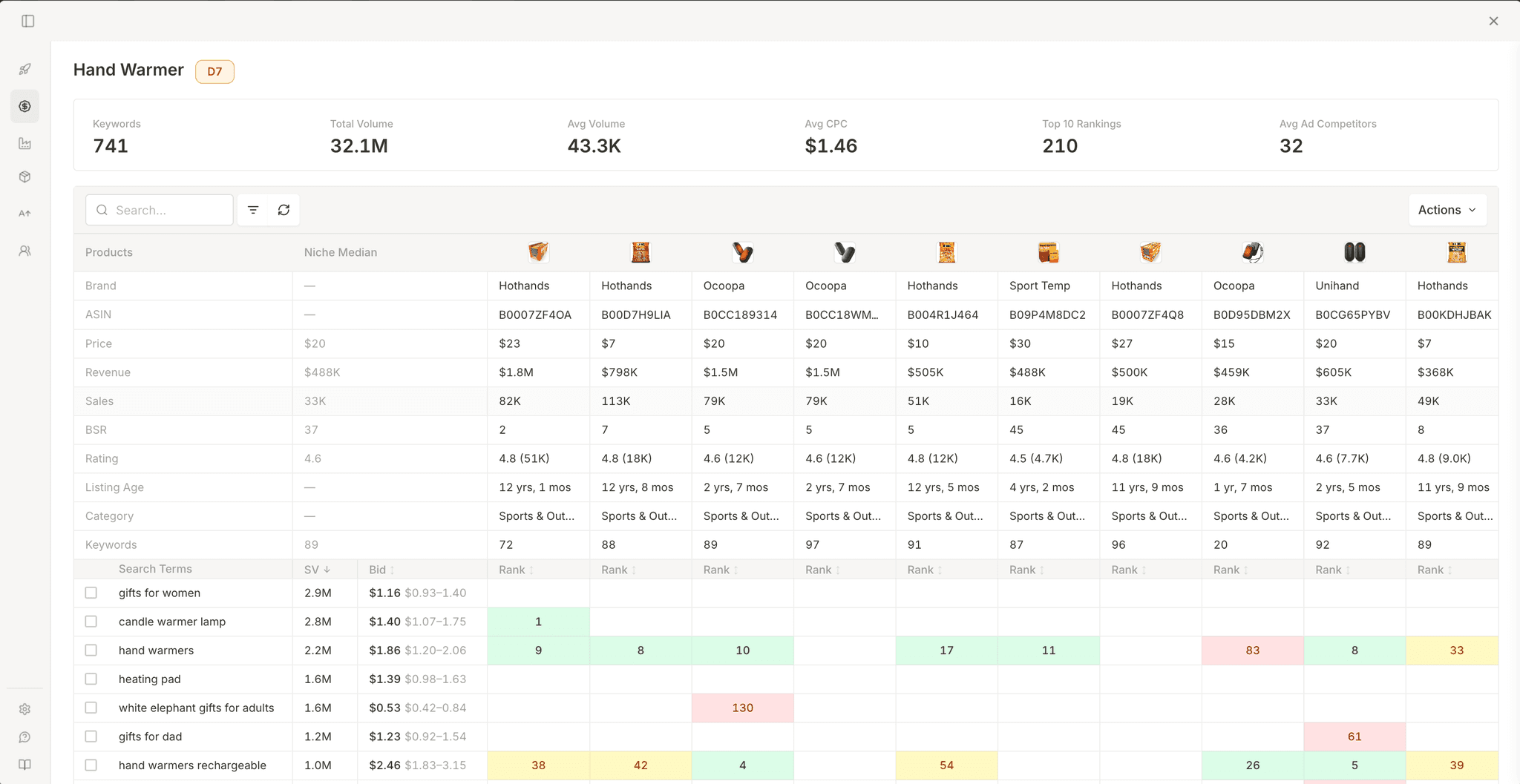
Select products from Market Research and run keyword analysis. Launch Fast finds their keywords. One comparison matrix shows search volume, bid ranges, and the rank for each ASIN.
Overview
PPC Research gets products from Market Research. It finds the Amazon keywords for each product. A comparison matrix shows search volume, bid ranges, and ranking positions for each ASIN. Use it to find high-volume keywords, competitor ranks, and ranking gaps.
Running PPC Research
Keyword analysis starts the same way each time, but on search pages you pick the products first.
Open the dashboard
Click the chart button on the banner or a product card to open the modal.
Switch to PPC Research
Click PPC Research in the sidebar. A product selection dialog opens with all market-research products, pre-sorted by monthly revenue.
Select products
Choose the products you want to compare. The limit is 15 ASINs. The first 15 highest-revenue products are selected by default. You can clear all and pick manually.
Analyze rankings
Click Analyze Rankings. The extension discovers keywords for each selected ASIN, then builds the matrix. Progress updates show each phase.
The Comparison Matrix
The PPC Research tab has a two-tier layout: the top product strip shows selected ASIN metrics, and keyword rankings appear underneath for side-by-side comparison.
Product Strip
The top section shows each ASIN as a column with quick metrics. A Niche Median column is added as a benchmark for each metric so you can compare each listing quickly.
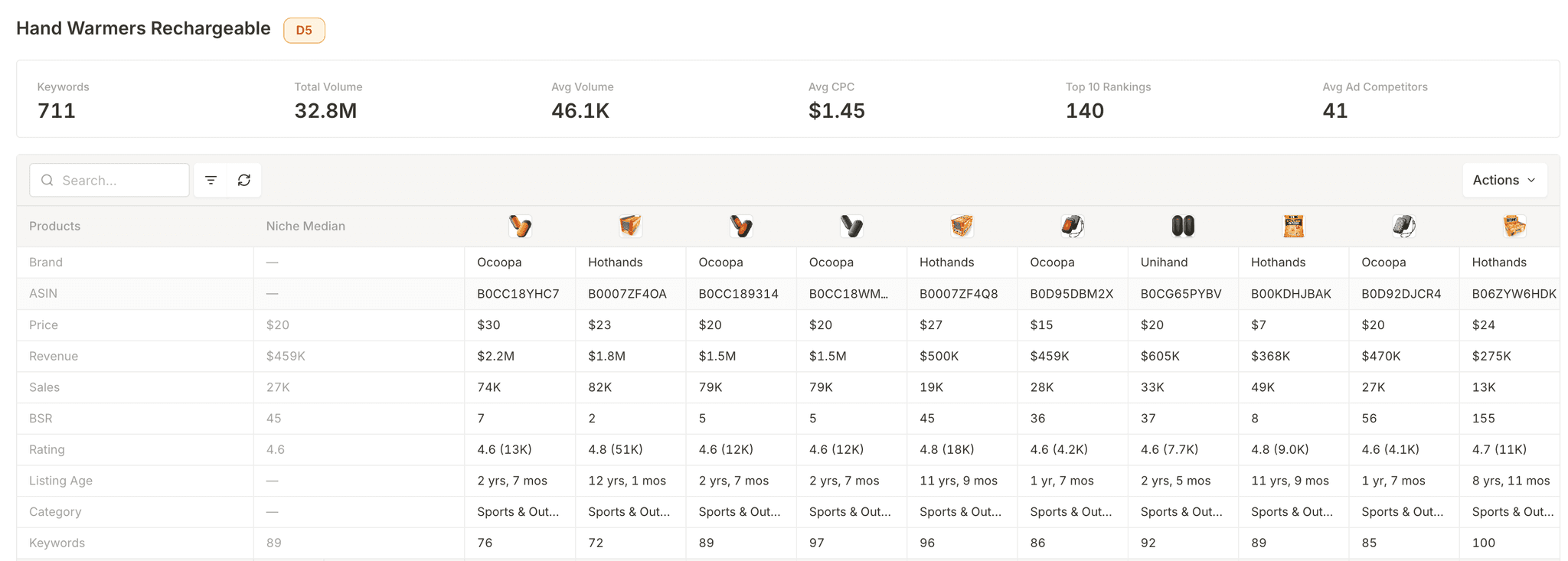
| Metric | What it shows |
|---|---|
| Product image | Thumbnail of the product |
| Brand | Brand name |
| ASIN | Clickable ASIN link |
| Price | Current listing price |
| Revenue (30D) | Revenue generated over the last 30 days |
| Sales (Units) (30D) | Units sold over the last 30 days |
| BSR | Best Seller Rank |
| Rating | Star rating |
| Listing Age | How long the listing was live |
| Category | Product category |
| Keywords | Number of keywords the ASIN ranks for |
Keyword Rankings
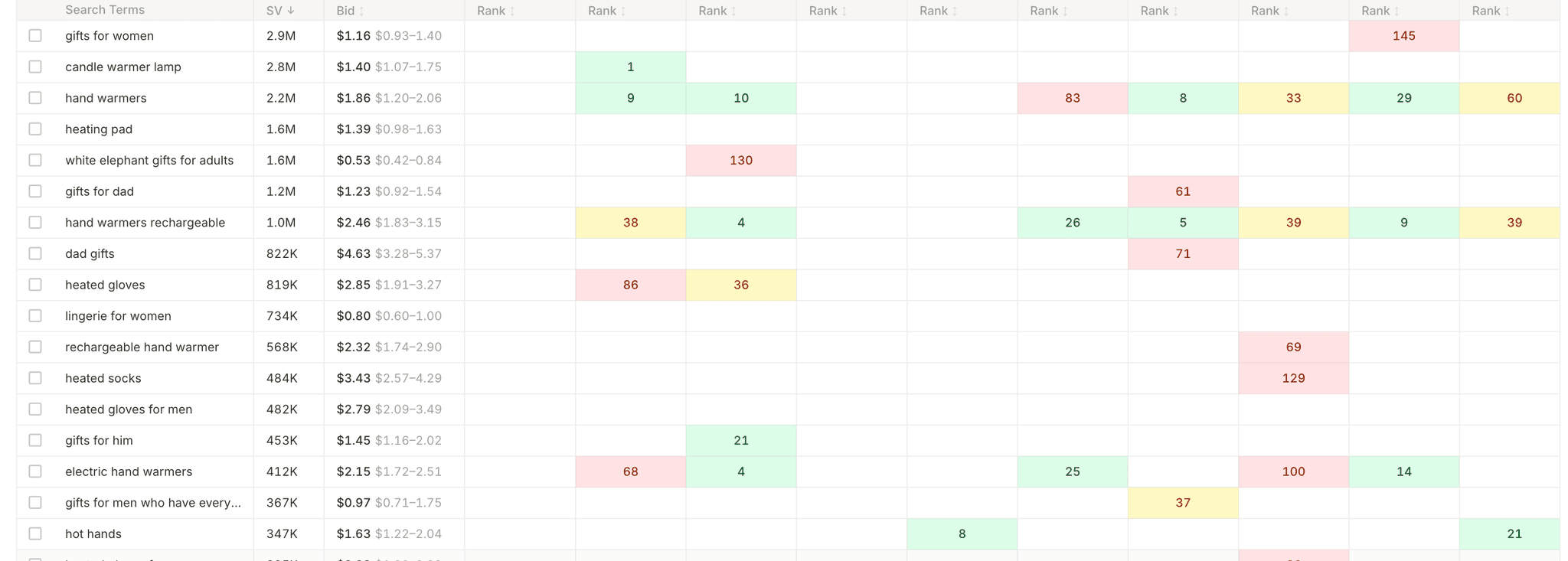
Each row is a keyword with fixed metadata columns and one ranking column for each selected ASIN.
Fixed columns
| Column | What it shows |
|---|---|
| Search Terms | The keyword |
| SV | Monthly search volume |
| Bid | CPC bid range (for example $0.50–$2.00) |
Ranking columns are one for each ASIN and use position color tags. Empty cells mean the ASIN does not rank for that keyword. By default, keywords are sorted by Search Volume in descending order.
| Rank band | Meaning |
|---|---|
| 1–30 | Strong position, page 1–2 |
| 31–60 | Mid-range, pages 2–3 |
| 61+ | Weak position, difficult to break into |
KPI Strip
Six metrics summarize keyword data across your selected products.

| KPI | What it measures |
|---|---|
| Keywords | Total unique keywords discovered across all selected ASINs |
| Total Volume | Combined monthly search volume |
| Avg Volume | Average search volume for each keyword |
| Avg CPC | Average CPC across all keywords |
| Top 10 Rankings | Keywords with at least one selected ASIN in the top 10 |
| Avg Ad Competitors | Average count of sponsored competitors for each keyword |
CPC Deep Dive
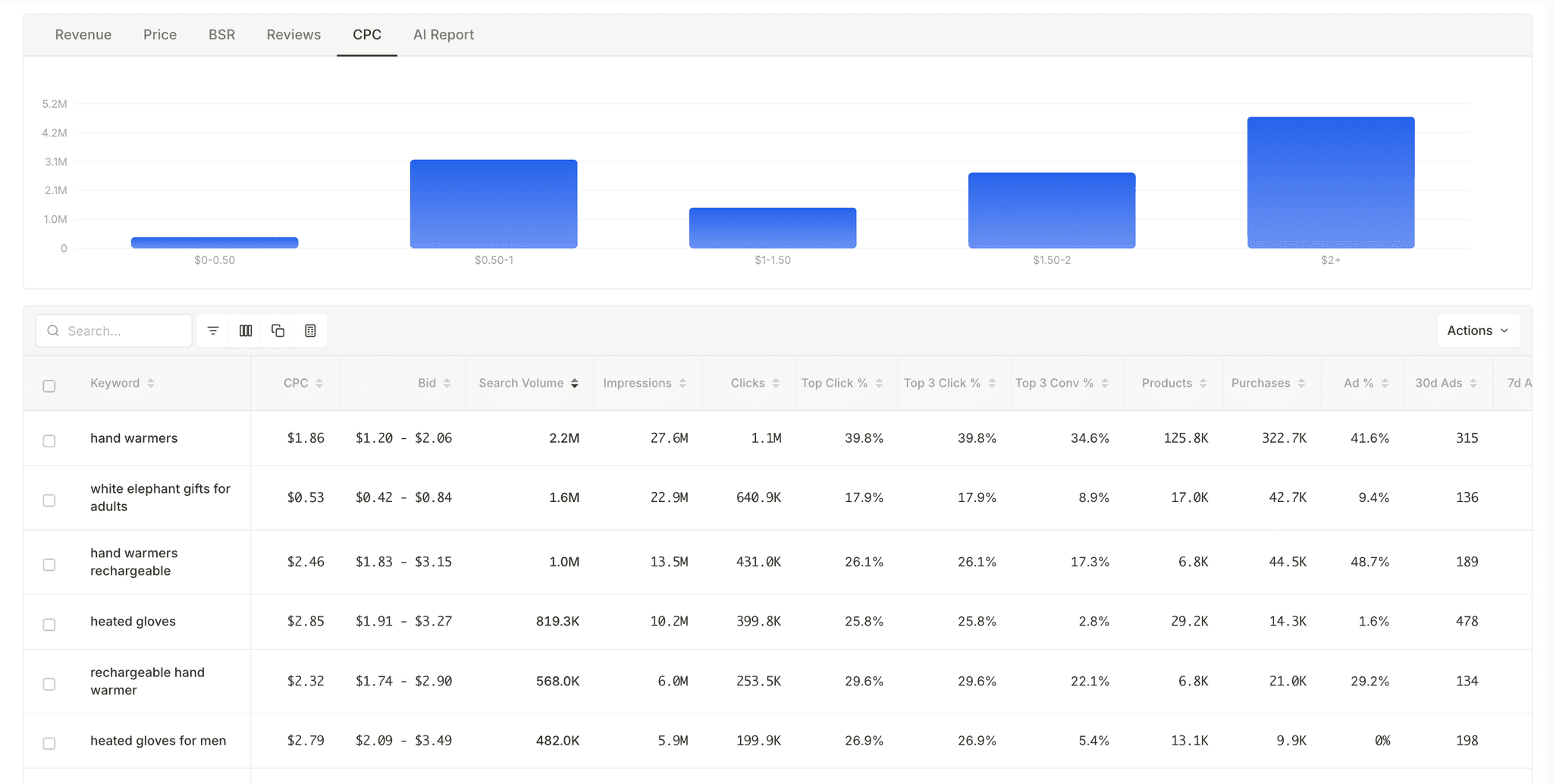
Use PPC Research to compare ranks for each ASIN. Then open the CPC tab in Market Research. Use its ad cost and competition data to plan spend.
| Section | Metrics |
|---|---|
| Cost & Volume | keyword, CPC, bid range, search volume, impressions, clicks |
| Competition | top click %, top 3 click %, top 3 conversion %, product count, supply-demand ratio |
| Advertising Activity | ad %, 30d ads, 7d ads, 1d ads, title density, SPR |
| Conversion | purchases, purchase rate, conversion rates by position |
The CPC table merges keywords across selected ASINs, deduplicates by keyword, and keeps the highest search volume plus average CPC for each term.
Use PPC Research to compare ranking positions across selected ASINs. Use the CPC view in Market Research for ad-cost and competition metrics.
Saving Keywords
Save promising keywords to a collection for later reference.
Select keywords
Check the keywords you want to save. Use the row checkboxes or the header checkbox to select all visible rows.
Open actions
Use the Actions menu and select Save to Collection.
Pick or create collection
Pick an existing collection or create one, then click Save.
Saved keywords preserve full metadata, including volume, CPC, bid range, and competition signals, and are available from the Collections section.
Best Practices
Tips for getting the most out of keyword analysis.
- Start with your highest-revenue competitors.
Begin with 5–15 ASINs from the selected set, then expand only if the keyword mix is noisy.
- Prioritize keyword gaps.
Focus on high-volume keywords where multiple selected ASINs do not rank, since those are frequently easiest to own.
- Validate cost before committing.
Use CPC signals to remove expensive terms before they drain your budget.
- Save useful rows before you exit.
Keep strong keywords in a collection so you can use them for sourcing and campaign planning later.
Frequently Asked Questions
Common questions about PPC and keyword research.
Product Research
Visit an Amazon product page to see revenue, units, BSR history, and variation breakdowns in a banner, product card, and full research dashboard.
Supplier Research
Search a keyword on Amazon. Get related Alibaba suppliers, prices, MOQ, years in business, and bulk price tiers in one modal.